



MachDatum Mobile
CMMS mobile app for the shop floor
Scan the asset, say what’s wrong, work the checklist and close the job, on iPhone or Android, standing next to the machine.
Work orders on the floor
One breakdown, start to finish, on the phone
Follow WO-031 on press HP-04, from the first scan to closed, without going back to the desk.
07:00Home
The day starts on Home
Home lists the jobs assigned to him, the overdue one in red, under a quick overview of the plant.
09:20Scan
Oil under press HP-04. He scans its QR code
He points the camera at the tag on the press. No searching for the asset.
09:20Asset
The press opens, with what he can do next
Its details, location and criticality, and a work order with the asset already filled in.
09:21Work Order AI
He opens Work Order AI
One tap on the AI button. The assistant takes the issue by voice or text.
09:21Voice
He says what’s wrong
“HP-04 is leaking at the seal, there’s oil on the floor.” No typing on a small screen with gloves on.
09:22AI draft
He checks the AI draft
Title, type, asset and priority come back filled in from his voice. He checks them and taps Confirm & Create.
09:22Created
Work order created
WO-031 is in the system, and the planner sees it straight away.
09:30Push
The job is assigned to him
A push notification arrives on his lock screen. One tap opens WO-031.
09:40Start
Start Work, right at the press
He moves the job to In Progress. The start time and technician are recorded.
10:05Ask AI
Not sure of the test pressure? He asks
From the press’s page he asks AI. The answer comes from HP-04’s own service manual, with the page it’s on.
10:30Checklist
Every check done on the phone
Pass, Fail or Flag each task, enter the 180 bar the manual gave him, and add a photo of the new seal.
11:02Done
Completed, with the full story kept
Every step, who did it and when, stays in the job’s history.

Assets in the field
One new motor: added, moved and verified
Follow MTR-14 from the day it arrives to its first month-end check.
Day 1Arrives
A new motor arrives at stores
Arjun opens Assets and taps the AI button to add it. No long form to fill in by hand.
Day 1Photo
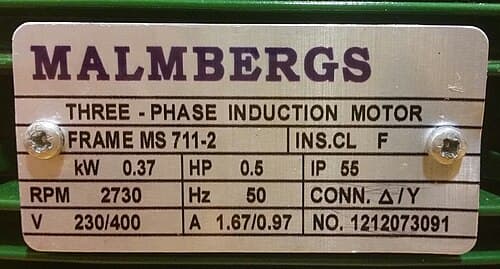
One photo of the nameplate
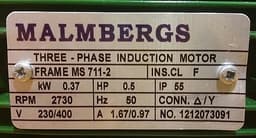
Photograph the nameplate. AI reads the make, model and ratings and fills in the asset for you to check.
Day 1Tagged
Created, with its QR label ready
MTR-14 gets its own QR code. Print it and stick it on the motor.
Day 2Moved
Record the move to Line 2
Pick the asset, the movement type and where it’s going. The current location fills in by itself.
Day 2Approved
The move goes through its workflow
Requested, approved, moved. From and to locations and who approved it are kept.
Day 30Verify
Month-end check, asset by asset
Open the Line 2 verification and tick each asset’s tasks: tag, location, condition.
Day 30Verified
Line 2 verified
All assets complete and the verification is marked Verified, ready for the audit.


More
Everything else, in the More tab
Preventive maintenance, asset movements and verifications, a tap away on the floor.
MoreOne tab
The rest of the CMMS, one tap away
Preventive maintenance, asset movements and asset verifications all sit in the More tab.
PMSchedules
Every PM plan, in your pocket
The plan behind a PM job: its asset, its schedule and every work order it has created.
MovementsTransfers
Every move, with its approvals
All transfers and location changes in one list: from where, to where, and whether it’s requested, approved or moved.
VerificationsChecks
Every check and how far it’s got
Each verification shows its checklist and how many assets are done, open or verified.
Built for the shop floor
Everything the job needs, in the technician’s hand
The same work orders as the web app, on the phone they already carry.
Voice to work order
Say what’s wrong. AI writes the work order.
Describe the fault out loud. MachDatum drafts the title, type, asset and priority, and you confirm.
Works offline
Keep working where there’s no signal
Push notifications
Alerts that open the job
Comments
Photos, video and notes on the job

Workflow
Move it to Completed on the spot
Checklists
Pass, Fail or Flag every task
QR scan
Scan the tag, act on the asset
Point the camera at the QR tag on any machine. The asset opens with its details, and a work order or movement starts with the asset already filled in.
Get the app
Get MachDatum Mobile
Free to download on iPhone and Android. Sign in with your MachDatum work account.
- Same account, roles and data as the web app
- Work orders, assets, scan, PM and parts
- Voice work orders and Ask AI built in
Frequently asked questions
Yes. MachDatum Mobile runs on iPhone and Android, and uses the same account, roles and data as the web app.
Put MachDatum in every technician’s pocket
30 minutes, your own equipment, no obligation.