
User Login and Password Reset Guide
When using the Canteen Management System for the first time, you will need to reset your password before logging in.
Step-by-Step Instructions
Open the Application (Canteen Management System) on your device.
On the login screen, click the Reset Password button to begin the setup process.
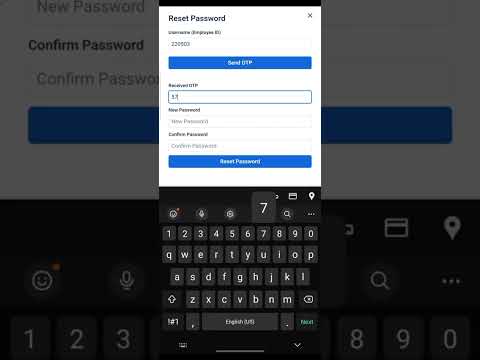
On the password reset page, enter your Username (Employee ID) and Click the Send OTP button.
An OTP (One-Time Password) will be sent to your registered mobile number. Enter the received OTP in the designated field.
Enter your new password and confirm it by entering it again. Click the Reset Password button.
You’ll be redirected to the login page. Enter your Employee ID and the new password you just set. Click Sign In.
Once successfully signed in, you will be taken to the Meal Booking page.
Want to learn more?
Browse all guides →