
Meal Booking Guide
Users can book meals (Breakfast, Lunch, or Dinner) for specific dates using the calendar in the Canteen Management System.
Step-by-Step Instructions
Go to the login page of the CMS.
Enter your credentials or click "Forgot Password".
Follow the email instructions to reset your password.
Open the Canteen Management System application and go to the Meal Booking page.
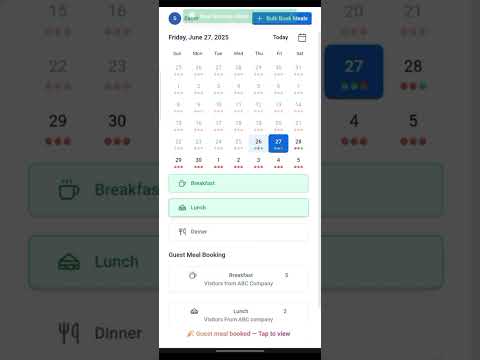
Click on the date in the calendar for which you want to book a meal.
Click on the meal(s) you want to book for that day: Breakfast, Lunch, or Dinner.
A green dot will appear under the selected date, confirming that your meal has been successfully booked.
Note:
• The system allows meal booking only before the specified cutoff times set by the admin.
• Meal booking attempts after these times will not be accepted by the system.
To Cancel a Meal Booking
Click on the date where the meal has already been booked.
Click on the same meal button (Breakfast, Lunch, or Dinner) again.
The green dot under the date will turn red, confirming that the meal booking has been cancelled.
Want to learn more?
Browse all guides →